Wi-Fi Only Upload
Wi-Fi Only Upload
Avlix Cloud allows you to set uploads and downloads to work only when your device is connected to Wi-Fi. This feature helps save mobile data if your cellular plan has limited bandwidth.
Mobile App
To adjust your network preferences:
Open the Avlix Cloud app on your device.
Tap the menu icon (three lines) in the top corner.
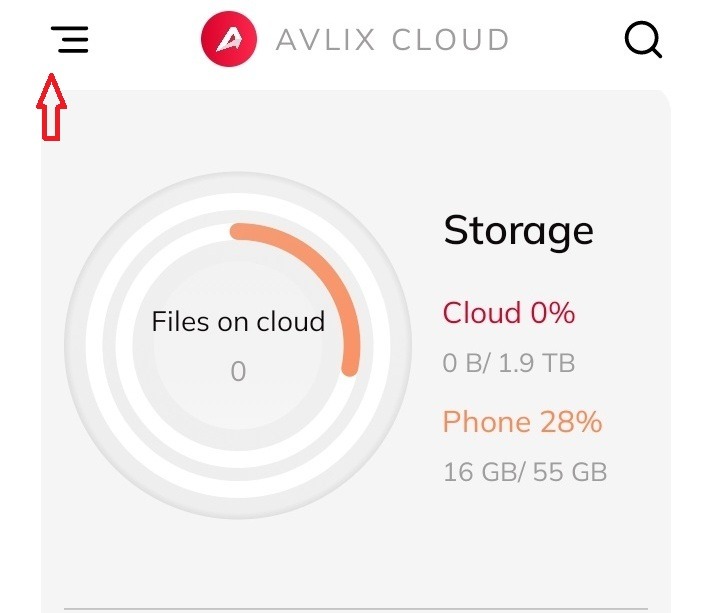
3. Under the Network section, choose one of the options:
Wi-Fi Only: Files such as photos, videos, music, and documents will upload or download only when Wi-Fi is available.

When Wi-Fi-only mode is active, small previews and basic file details may still load to help you navigate your storage.
Was this article helpful?
[email protected]